
Anker Laptop Docking Station Dual Monitor
4.5Editor score
8-in-1 connectivity
4K HDMI support
Compact design
Discover the top docking stations for Dell laptops in October 2026. We compare features, compatibility, and performance to help you find the perfect connector.
Finding the right docking station for your Dell laptop is essential for maximizing productivity. Whether you need dual monitors or fast charging, a quality hub transforms your workspace into a powerful desktop setup.
We evaluated ten top-rated docking stations based on port selection, power delivery, and compatibility with Dell systems. Each product was analyzed for build quality, video output capabilities, and user feedback to ensure reliable performance.
Each pick highlights unique strengths tailored to different needs and budgets. Prices and availability change frequently, so verify current details before purchasing. This guide helps you choose the best solution for your specific Dell laptop model.
4.5Editor score

4.5Editor score

4.3Editor score
This comparison table outlines the key specifications of each selected docking station. Review the ports, video outputs, and power capabilities to determine which model aligns best with your Dell laptop requirements.




The Dell Pro Laptop Docking Station WD25 stands out as the premier choice for users seeking maximum performance and display flexibility. It boasts a 4.5 rating and delivers up to 100W of power to compatible laptops. Its native support for up to four high-res displays makes it ideal for multitasking workflows.
We may earn a commission when you buy through this link, at no additional cost to you.
This dock is part of the world's most manageable commercial docking family, ensuring IT efficiency and continuous productivity. The ambidextrous USB-C cable allows flexible routing left or right. It features robust connectivity for modern accessories with faster USB and network speeds.
While it comes at a premium price, the investment is justified by its advanced manageability and sustainability. Users benefit from a 72% reduction in standby power consumption. The dock is built with at least 65% postconsumer recycled materials.
IT professionals and Dell AI PC users should consider this model for its seamless integration and powerful expansion capabilities. It ensures your workspace remains organized and efficient with minimal disruption. For those needing extensive display options, this is the top recommendation.
Designed to power essential productivity across the AI PC workplace, this dock handles modern computing demands with ease.
The ambidextrous cable and new robust connector offer ergonomic benefits and enhanced durability for daily use.
We may earn a commission when you buy through this link, at no additional cost to you.
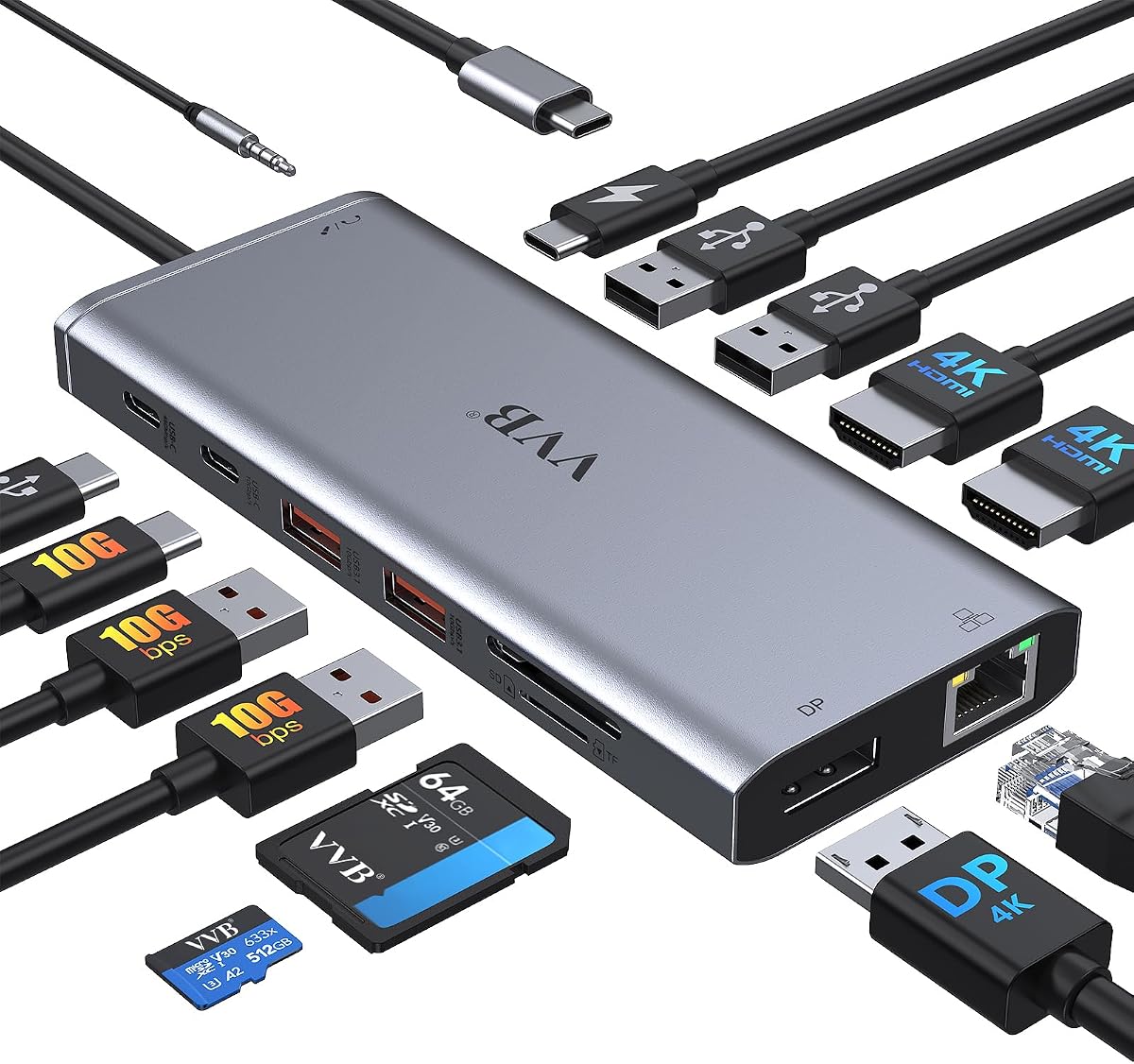
The Anker Laptop Docking Station Dual Monitor offers exceptional value with its 8-in-1 design. Rated 4.5 stars, it provides massive expansion including HDMI, Ethernet, and card readers. Users can stream content to a single device in stunning 4K@60Hz or hook up two displays at 4K@30Hz.
We may earn a commission when you buy through this link, at no additional cost to you.
Equipped with a USB-C PD-IN charging port, it supports high-speed pass-through charging up to 85W. The hub supports Windows 10 and 11, ChromeOS, and laptops with DP Alt Mode. It delivers incredible range of functions from a single USB-C port effortlessly.
While Linux users should note incompatibility, Windows and ChromeOS users will find this hub highly reliable. The 18-month warranty and friendly customer service add peace of mind. Its compact design fits easily into backpacks for portable work.
Budget-conscious users needing dual displays will find this hub perfect. It balances cost and functionality effectively without compromising on core features. The Anker Advantage ensures you join millions powered by leading technology for consistent performance.
Stream or mirror content to a single device in stunning 4K@60Hz for clear visual experiences during presentations.
Compatible with USB-C Power Delivery to provide high-speed pass-through charging up to 85W for your device.
We may earn a commission when you buy through this link, at no additional cost to you.
The Anker Prime Docking Station brings together all devices with a 14-in-1 solution. With a 4.3 rating, it delivers a powerful charge with 160W of total output. This allows charging up to four devices simultaneously through USB-C and USB-A ports efficiently.
We may earn a commission when you buy through this link, at no additional cost to you.
Manage data across multiple devices with versatile ports offering speeds up to 10Gbps. Dual 4K display options ensure crystal-clear streaming across two displays at up to 2K@60Hz. It supports USB-C, USB4, and Thunderbolt connections for broad laptop compatibility.
Support team assistance is available within 24 working hours via Amazon orders. The package includes a safety sheet and USB-C cable. It is a robust choice for those needing extensive connectivity and power in one unit.
Power users managing complex setups will appreciate the extensive features. The dock handles data transfer and charging with ease. Despite the cost, the performance and port variety justify the investment for professional workflows.
Efficiently manage data across multiple devices with versatile ports offering speeds up to 10Gbps.
Connect to dual HDMI ports to enjoy crystal-clear streaming or mirroring across two displays effectively.
We may earn a commission when you buy through this link, at no additional cost to you.
The HoDo USB C Docking Station offers an 8 IN 1 setup with 4K HDMI support. Rated 4.3, it features dual HDMI and DP ports along with VGA. It outputs up to 4K Dual/Triple Display videos depending on your laptop specs.
We may earn a commission when you buy through this link, at no additional cost to you.
Equipped with a 100W USB-C PD charging port, it supports safe output into your laptop. The three USB 2.0 ports allow convenient connection of keyboards and mice. Transfer speeds are suitable for flash drives and hard disks.
It works with full-featured USB-C ports supporting DisplayPort Alternate Mode. Note that VGA connection affects resolution to 1080P only. Support is available for issues within 24 hours through the order page.
Users needing triple displays on a budget will find this adapter effective. Just ensure your laptop supports DP1.4 signals. It offers solid connectivity options for both HP and Dell laptops requiring multiple screens.
The dock features four video output ports for up to 4K Dual/Triple Display video connectivity.
The docking station supports up to 100W input with safe 87W output charging for your laptop.
We may earn a commission when you buy through this link, at no additional cost to you.
The Anker Nano Laptop Docking Station features a detachable 6-in-1 hub for on-the-go use. Rated 4.2, it replaces two devices covering home and mobile work needs. It supports triple displays up to 4K@60Hz or 1080P@60Hz.
We may earn a commission when you buy through this link, at no additional cost to you.
All ports you need are included in one dock. It delivers up to 100W Power Delivery to charge your laptop while running peripherals. Data transfer speeds reach 10Gbps for moving large files quickly under two minutes.
Setup is quick with plug and play and no drivers needed. It works with Dell XPS, Lenovo ThinkPad, and HP Spectre. The blue light strip and ports only activate when connected via upstream.
Remote workers needing flexibility will love this design. The dock is perfect for data analysts and traders needing screen real estate. The complete package ensures you have everything needed for a desktop setup immediately.
Features a detachable 6-in-1 portable hub that snaps off for on-the-go use and travel convenience.
Connect up to 3 monitors for a full desktop workstation with flexible setup options.
We may earn a commission when you buy through this link, at no additional cost to you.
This USB C Docking Station extends your laptop into 14 ports. With a 4.3 rating, it supports dual and triple displays with 4K HDMI and DP. Single use resolutions reach up to 4K@60Hz depending on the port used.
We may earn a commission when you buy through this link, at no additional cost to you.
Equipped with 10Gbps data ports, it allows file transfer in seconds. It supports power input up to 100W with limited safe charging output. Gigabit Ethernet provides a stable and reliable wired connection for work.
The dock is compatible with Dell Latitude, Inspiron, and HP EliteBook models. It offers USB A 2.0 ports for mouse connections without lag. It includes SD card readers and audio jacks for peripherals.
Users needing extensive connectivity will find this hub robust. Just ensure your laptop supports Power Delivery protocols. It offers a solid multiport solution for enhancing your workstation capabilities without extra hardware.
This docking station dual monitor supports dual monitor and triple displays for Windows .
Equipped with USB C ports and USB 3.1 ports that allow you transfer files in seconds.
We may earn a commission when you buy through this link, at no additional cost to you.
The Dell WD19S 180W Docking Station offers a robust connection for Dell laptops. Rated 3.8, it features a 130W Power Delivery system to charge devices efficiently. Its design is built for the future of computing connectivity.
We may earn a commission when you buy through this link, at no additional cost to you.
This station optimizes your workspace by consolidating ports. It supports HDMI and dual DisplayPort outputs for expanded viewing. The USB-C interface ensures a clean and streamlined connection path for your peripherals.
Users seeking a dedicated Dell dock will appreciate its stability. It provides necessary power for high-performance laptops. While ratings vary, the high adapter wattage supports demanding workloads effectively for productivity.
Business users needing reliable power and video output should consider this model. It simplifies desktop connections significantly. Verify compatibility with your specific Dell model to ensure full functionality and performance.
This station is designed with future computing needs in mind for longevity.
It provides a streamlined way to manage all your laptop connections efficiently.
We may earn a commission when you buy through this link, at no additional cost to you.
This Anker Docking Station turns your laptop into a desktop workstation with 13 ports. Rated 4.0, it runs up to 3 external monitors at 1080p@60Hz. It includes an 85W host charging and an 18W PD for phones.
We may earn a commission when you buy through this link, at no additional cost to you.
It features triple USB-C and USB-A ports along with Gigabit Ethernet. You can transfer files at 10Gbps and read SD cards quickly. The compact vertical design saves valuable desk space significantly.
The dock supports extended displays on Windows 10/11 and ChromeOS with MST. It works with Full-Functional USB-C and Thunderbolt ports. This makes it a versatile choice for modern Windows laptops.
Users seeking a powerful hub with solid warranty support will find it reliable. The 18-month warranty and trusted brand add confidence. It balances port variety with a compact footprint for professional setups.
This 13-port dock turns your laptop into a powerful desktop workstation for enhanced productivity.
Run up to 3 external monitors for expanded multitasking on supported Windows systems.
We may earn a commission when you buy through this link, at no additional cost to you.
The Dell WD19 130W Docking Station offers classic connectivity for users. Rated 4.0, it features dual DisplayPort 1.4 and HDMI 2.0B outputs. It includes USB-A ports with PowerShare for charging devices while docked.
We may earn a commission when you buy through this link, at no additional cost to you.
It comes with a 130W AC adapter for stable power delivery. The interface uses USB-C for a direct laptop connection. Note dimensions and weight for desk placement and portability during travel.
This station is widely used in corporate settings for reliability. It simplifies connections to displays and peripherals effectively. Ensure your computer supports USB-C DisplayPort or Thunderbolt 3 before purchase.
Users seeking a stable Dell dock will find it effective. The PowerShare feature adds convenience for mobile devices. Always verify compatibility on the product page to avoid connection issues.
The docking interface is USB-C providing a modern connection for Dell laptops.
USB-A ports support PowerShare allowing device charging while docked.
We may earn a commission when you buy through this link, at no additional cost to you.
This renewed WD19 Dell Docking Station offers a cost-effective connectivity solution. Rated 4.1, it supports various devices from Inspiron to XPS series. It features a 180W adapter for reliable power to connected laptops.
We may earn a commission when you buy through this link, at no additional cost to you.
Designed for USB-C DisplayPort or Thunderbolt 3 compatibility, it simplifies setups. Effortlessly connect peripherals and monitors for maximized productivity. Note that firmware updates may be required for optimal use.
Ensure your computer is USB-C or Thunderbolt compatible before purchasing. It offers a broad range of connection options for multiple screens. The renewed status provides a budget-friendly alternative to new hardware.
Users looking for a reliable Dell hub will find this useful. It maximizes productivity by reducing cable clutter significantly. Always update dock firmware to resolve any issues with your specific computer model.
This hub supports select models from the Inspiron, Venue, Precision, XPS, and Latitude series.
Designed for laptops compatible with USB-C DisplayPort or Thunderbolt 3, it simplifies your setup.
We may earn a commission when you buy through this link, at no additional cost to you.
Selecting the right dock requires understanding your laptop's ports and your workflow needs.
Evaluate the number of USB, HDMI, and Ethernet ports you need daily. Ensure the dock covers all your peripheral connections without requiring adapters.
Aim for at least two HDMI ports if you use multiple monitors regularly.
Check the wattage of the charging port to ensure it supports your laptop's needs. Most high-performance laptops require 65W to 100W for efficient charging while docked.
Prioritize docks that support fast pass-through charging to keep your device powered during work.
Confirm the supported resolution and refresh rates. Dual 4K monitors usually require DP 1.4 support and proper signal handling.
Ensure your laptop supports DP Alt Mode to enable external displays through the docking station.
Match the dock to your specific Dell laptop series. Some docks are optimized for Dell AI PCs while others work universally.
Verify Thunderbolt or USB-C requirements to avoid connection issues.
Look for Gigabit Ethernet for stable internet speeds. Wireless networks can be less reliable during heavy data transfers.
Docks with Ethernet ports provide a secure connection for business tasks.
Consider the durability of connectors like USB-C. Robust connectors prevent wear and tear over time.
Look for warranties that cover durability defects for long-term peace of mind.
Assess if the dock fits your desk space. Some models are vertical while others are horizontal.
Detachable options can save space for users who travel frequently.
Some docks offer lower power consumption and recycled materials. This reduces your energy usage over time.
Prioritize eco-friendly docks if environmental impact is a priority for your purchase.
Connect the USB-C cable to your laptop's Thunderbolt or USB-C port to activate the hub. Ensure the power adapter is plugged in for full functionality.
Use the Ethernet port for stable internet and HDMI ports for external monitors. Configure display settings in your OS to extend or mirror screens.
Avoid bending cables excessively and keep vents clear to prevent overheating. Regularly check for firmware updates from the manufacturer website.
Most Dell laptops require a USB-C port with DisplayPort Alternate Mode. Some models support Thunderbolt 3 or 4 for higher performance. Check your specific laptop's ports before purchasing.
Yes, many docks support dual or triple displays via HDMI and DisplayPort. Ensure your laptop supports MST for Windows systems. macOS often mirrors multiple monitors on standard docks.
Most modern hubs support Power Delivery to charge your laptop while connected. Ensure the dock matches your laptop's wattage requirement. Some require an included adapter for full charging speed.
No, the port must support video output and data transfer. Some USB-C ports only charge or transfer data. Verify your laptop model supports video output via USB-C.
This often occurs with macOS on standard docks without MST. Windows usually supports extended displays. Ensure your dock matches OS requirements for independent screens.
Download the latest firmware from the manufacturer's support site. Connect the dock to your laptop and run the installer. Updates resolve compatibility issues with newer systems.
These ten options provide powerful connectivity for Dell laptops ranging from budget to premium choices. Select the model that matches your display needs and power requirements.
Prioritize power delivery and video resolution for best performance. A compatible dock simplifies your workspace and boosts productivity.
Always verify current availability and compatibility before buying to ensure a smooth setup experience.