
Highwings USB C to HDMI Adapter for Home Office (4K@60Hz) for Laptop
4.5Editor score
Affordable price point
Supports DP Alt Mode
24K gold-plated connectors
This guide compares the best HDMI cord adapters for Mac to help you find reliable 4K video output options for your laptop or desktop setup.
Finding the right HDMI cord adapter for your Mac is essential for connecting to external displays. These devices transform your laptop's port into a video output solution for presentations or entertainment. A good adapter ensures stable signal transmission without flickering or signal loss during critical moments.
We evaluated ten top-rated adapters based on build quality, compatibility with macOS, and video performance. Each product was analyzed for its ability to support high resolutions and sustain reliable connections over time. Our goal is to provide a clear overview of what each option offers.
The following list highlights the strengths and weaknesses of every adapter we researched. You will see how each one handles charging, data transfer, and video streaming. Please note that product availability and pricing may change after this guide was published.
4.5Editor score

4.6Editor score

4.5Editor score
This section provides a side-by-side look at the key specifications and features of each adapter to help you choose the right fit.




The Anker USB C to HDMI Adapter offers a reliable way to connect your Mac to external displays. It supports video resolutions up to 4K at 60Hz and maintains strong compatibility with USB-C DP Alt Mode. Its aluminum casing helps manage heat effectively, which is important for long sessions.
We may earn a commission when you buy through this link, at no additional cost to you.
This adapter stands out for its consistent performance and durable construction. The reinforced braided-nylon cable can handle daily wear and tear better than standard plastic covers. You can rely on it for important presentations or streaming media without worrying about connection drops.
One trade-off is that this model does not support Power Delivery, so you cannot charge your Mac while using the HDMI output. This means you will need another port for charging if you plan to use the device for extended periods without an outlet.
Overall, this adapter is an excellent choice for Mac users who prioritize video quality and durability. It is simple to use and fits well with modern USB-C devices. If you need a trusted solution for mirroring or extending your screen, this option delivers solid results.
The adapter handles 4K@60Hz smoothly, ensuring sharp images and fluid motion on compatible displays.
Its braided cable and aluminum body protect against bends and heat, extending the adapter's lifespan.
We may earn a commission when you buy through this link, at no additional cost to you.
The Apple USB-C Digital AV Multiport Adapter is an official option designed to work seamlessly with Macs and iPads. It lets you connect to HDMI displays while also using a USB port for peripherals and charging your device at the same time. This multiport design is useful when you need more than just video.
We may earn a commission when you buy through this link, at no additional cost to you.
Because it is made by Apple, it offers consistent performance with macOS and iPadOS. You can mirror your screen for presentations without extra steps or drivers. The ability to charge your Mac while using the adapter solves a common pain point for many users.
The main drawback is the cost, which is higher than most third-party alternatives. Also, you will need to purchase an HDMI cable separately, which adds to the total setup expense. For casual use, other adapters might offer better value.
This adapter is ideal for users who want guaranteed compatibility and need multiple connection types at once. It works well in office settings where you need to plug in a flash drive or charge while presenting. If budget is less of a concern, this is a dependable choice.
It includes HDMI, USB-A, and USB-C charging, so you can connect several devices through one adapter.
It is designed specifically for Apple hardware, ensuring smooth recognition and stable video output.
We may earn a commission when you buy through this link, at no additional cost to you.
The Highwings USB C to HDMI Adapter provides a cost-effective way to connect your Mac or laptop to an external display. It supports clear 4K video at 60Hz and works with any USB-C port that supports DP Alt Mode. The braided nylon jacket is designed to withstand frequent plugging and unplugging.
We may earn a commission when you buy through this link, at no additional cost to you.
Even though it is budget-friendly, it includes quality features like 24K gold-plated connectors and strain relief. These details help ensure a stable connection and protect the cable from damage over time. It is a great option for home office use or occasional presentations.
The adapter only supports one-way video output, meaning you cannot use it to send video to your Mac from an HDMI device. Also, it does not support charging, so you will need another port to keep your laptop powered. These are typical limits for simple adapters.
If you are looking for a reliable adapter that does not break the bank, this model is worth considering. It delivers good performance for the price and comes with a generous warranty for peace of mind. Just check your device's video support before buying.
You get 4K video support and durable materials at a price that fits most wallets.
The 24-month warranty covers defects and ensures you have support if issues arise later.
We may earn a commission when you buy through this link, at no additional cost to you.
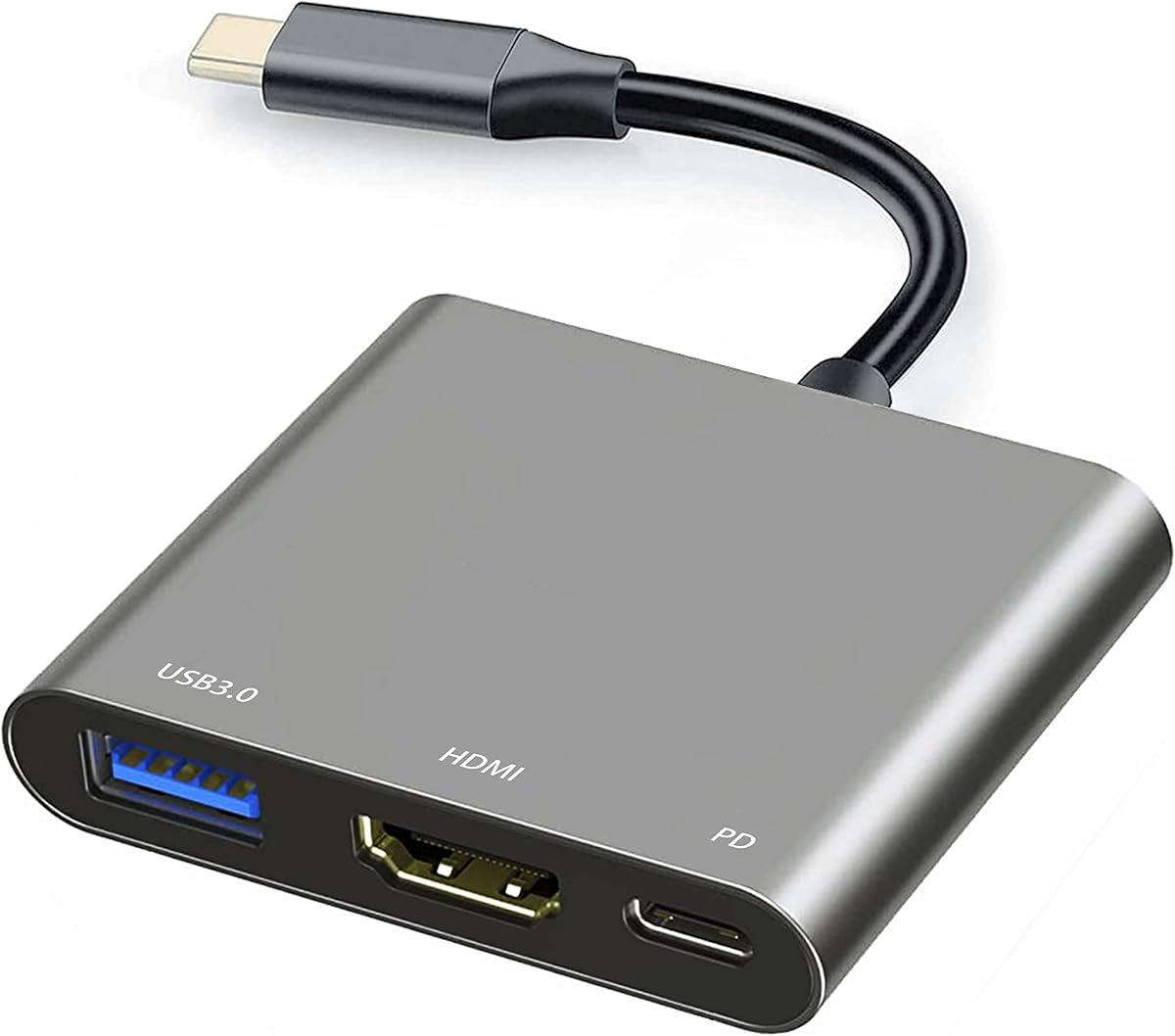
The Battony USB C to HDTV Adapter is a 3-in-1 solution that combines HDMI video, USB 3.0 data, and a charging port. It is designed for users who need to present on a TV while transferring files and keeping their laptop charged. The slim aluminum body makes it easy to carry.
We may earn a commission when you buy through this link, at no additional cost to you.
It supports 4K output at 30Hz, which is suitable for most presentations and media viewing. The USB 3.0 port can transfer data at speeds up to 5Gbps, which is faster than USB 2.0. This added functionality makes it useful in offices or travel scenarios.
A limitation is that the 4K video is limited to 30Hz, which may feel less smooth for fast-motion content. Some users might also find the compatibility list specific to certain laptop models. Check that your device is supported before purchasing to avoid issues.
This adapter is a good pick for those who need more than just video in a small package. It balances functionality and portability, and the aluminum casing helps with heat. If you want a multiport adapter that includes charging, this one is worth looking at.
It provides HDMI, USB data, and charging in one compact unit for versatile connectivity.
The slim aluminum design keeps it lightweight and helps it resist heat during use.
We may earn a commission when you buy through this link, at no additional cost to you.
The Warrky USB C to HDMI Cable is a 6-foot solution that gives you extra distance when connecting your Mac to a display. It supports 4K video at 60Hz and includes a nylon braided jacket to resist fraying and kinking. A Velcro tie is included to keep the cable organized.
We may earn a commission when you buy through this link, at no additional cost to you.
This longer cable helps when your Mac is far from the TV or projector. It uses gold-plated connectors to ensure stable data transmission and reduce interference. The aluminum case dissipates heat effectively, which helps maintain performance during long use.
Since it is a cable rather than a dongle, the length is fixed and cannot be adjusted. You cannot use it to send video from an HDMI source to a USB-C device either. If your setup requires flexibility, a separate adapter might be more practical.
For presentations or home theater setups where distance matters, this cable is a strong option. It combines durability with high-quality video support and comes with thoughtful accessories like the Velcro tie. If you need to reach a display across a room, this adapter works well.
The 6-foot length lets you place your laptop farther away while keeping a clean connection.
Gold-plated connectors and a braided jacket protect the cable from wear and ensure signal clarity.
We may earn a commission when you buy through this link, at no additional cost to you.
This USB C to HDMI Multiport Adapter is designed to be a small hub that includes HDMI output and charging. It supports HDMI 2.1 standards, which are backward compatible with older versions. You can connect USB 3.0 and 2.0 devices at the same time while keeping your Mac powered.
We may earn a commission when you buy through this link, at no additional cost to you.
The gray aluminum alloy shell keeps the design compact and durable. It fits easily into a laptop bag and works well for travelers who need basic connectivity. The 27W charging support can handle light to moderate power needs, though it may not fast-charge larger laptops.
One limitation is the 27W charging limit, which may not be enough for power-hungry machines under heavy load. Also, user reviews are more mixed compared to other top-rated models. Check your laptop's charging requirements before relying on this for long sessions.
If you need a tiny adapter that adds video and charging plus extra USB ports, this model is worth checking. It is lightweight and offers a variety of connections in a small package. For casual use and travel, it can be a handy tool.
Its small size makes it easy to carry while still providing HDMI and USB connections.
It lets you plug in multiple peripherals and charge your device through one adapter.
We may earn a commission when you buy through this link, at no additional cost to you.
The Acer USB C to HDMI Adapter is a 3-in-1 hub that offers 4K video output, a USB-A port, and 100W charging capability. It works well for users who need to charge their laptop while connecting to a monitor or TV. The aluminum housing helps keep it cool during use.
We may earn a commission when you buy through this link, at no additional cost to you.
It supports 4K video at 30Hz, which is good for static content or slow-motion presentations. The USB-A 3.0 port allows high-speed data transfer for files and peripherals. It also supports multiple operating systems, including macOS and Windows.
The 4K resolution is limited to 30Hz, which may not suit fast-moving video needs. Also, the USB-A port does not support charging, so you will need to use the PD port for that. These limits are expected for most budget-friendly hubs.
For anyone who needs strong charging support alongside HDMI and USB connections, this adapter is a good choice. It balances performance and build quality, and the 100W PD is a strong feature for modern laptops. If charging power is a priority, this one stands out.
The 100W PD port can charge most laptops while you use the HDMI and USB ports.
It works across macOS, Windows, and ChromeOS, making it flexible for different users.
We may earn a commission when you buy through this link, at no additional cost to you.
The Kinhaly USB C to HDMI adapter works with iPhones, iPads, and MacBooks to mirror content to a TV. It supports 4K at 60Hz and includes a charging port so you can keep your device powered while watching. The aluminum alloy casing and braided cable improve durability.
We may earn a commission when you buy through this link, at no additional cost to you.
It handles plug-and-play setup well, though you may need to accept a trust prompt on iOS devices. The adapter is designed for family sharing, work reports, and live streaming. However, note that copyrighted streaming apps like Netflix may not work due to restrictions.
While it offers good video quality and charging, the inability to use some streaming apps is a significant limitation. Also, the device might not be supported for all apps that have DRM protections. Check your usage needs before buying to avoid disappointment.
If you want a single adapter for both iPhone and Mac that supports charging and 4K video, this model is worth considering. It is compact and easy to carry. Just remember that streaming app support is limited, so test your specific apps if possible.
It supports both iOS and macOS devices with a single adapter for flexible use.
You get 4K@60Hz output and charging support for uninterrupted viewing or work sessions.
We may earn a commission when you buy through this link, at no additional cost to you.
The BENFEI USB C to HDMI Adapter is a compact option that supports 4K video at 60Hz and works with Thunderbolt 3, 4, and 5 ports. It includes an advanced IC chip for stable signal conversion and has broad compatibility with iPhones, MacBooks, and Windows laptops.
We may earn a commission when you buy through this link, at no additional cost to you.
Its low price does not compromise video quality, as it handles high-resolution output reliably. The plug-and-play nature means no extra drivers or software are needed. It also comes with an 18-month warranty, which adds confidence for users.
One downside is that it does not have a charging port, so you must use another USB-C port for power. It also only supports one HDMI output, which may limit setups that require multiple screens. These are common constraints for single-purpose adapters.
This adapter is a great value for anyone who needs reliable 4K output without extra ports. It is small enough for travel and works with many devices out of the box. If your main goal is clear video mirroring or extension, it fits the bill.
You get 4K@60Hz and Thunderbolt support at a price that is easy to justify.
Its compatibility extends to many laptops, tablets, and phones with USB-C video output.
We may earn a commission when you buy through this link, at no additional cost to you.
This BENFEI Mini DisplayPort to HDMI Adapter is designed for older Macs and devices with Mini DP or Thunderbolt 2 ports. It supports 4K video at 30Hz and includes gold-plated connectors for stable transmission. The aluminum shell and unibody structure make it durable and portable.
We may earn a commission when you buy through this link, at no additional cost to you.
It is a strong choice for users with pre-2016 MacBooks or other devices using Mini DisplayPort. The signal conversion is reliable, and it supports high-definition audio as well as video. The bend lifespan is rated at over 15,000, ensuring long-term use.
However, it does not work with USB-C ports, which are standard on newer Macs. If your device uses USB-C or Thunderbolt 3 or later, you will need a different adapter. Also, the 4K output is limited to 30Hz, which may feel less smooth for fast video.
If you have an older Mac or a device with Mini DP and need to connect to an HDMI display, this adapter is ideal. It is compact, durable, and offers solid video quality. Just confirm your port type before buying to ensure compatibility.
It connects older Macs with Mini DP ports to modern HDMI displays and projectors.
Gold-plated connectors and an aluminum body ensure stable performance and long life.
We may earn a commission when you buy through this link, at no additional cost to you.
Selecting the right adapter depends on your specific needs, including resolution support, ports, and compatibility with your device model.
Check that the adapter supports the resolution and refresh rate you need. Many adapters support 4K at 30Hz or 60Hz, and choosing 60Hz gives smoother motion for videos or presentations.
Prioritize models that support 4K at 60Hz if you want fluid video playback.
Ensure your Mac has a USB-C or Mini DisplayPort that supports video output. Newer Macs use USB-C with DP Alt Mode, while older models use Mini DP or Thunderbolt 2. Check your laptop's specs before choosing an adapter type.
Match the adapter to your device's port type to avoid connection issues.
If you plan to use the adapter for long periods, look for one with a USB-C charging port. This lets you power your Mac while using HDMI output. Note that not all adapters support this feature.
Choose adapters with PD charging if you want uninterrupted use without a separate charger.
Adapters with aluminum casings help dissipate heat during use. Look for reinforced cables or braided nylon to prevent wear from frequent plugging. Good build quality also improves signal stability over time.
Opt for aluminum housings and reinforced cables for long-term reliability.
Some adapters include extra ports like USB-A for flash drives or mice. If you need to connect multiple devices, a multiport adapter may be more useful than a single HDMI adapter.
Consider multiport options if you also need USB or SD card connectivity.
Most adapters are plug-and-play on macOS, but it is wise to check system requirements. Some older adapters may need specific macOS versions. Official Apple adapters guarantee compatibility with macOS and iPadOS.
Verify that the adapter works with your macOS version before purchasing.
Check the warranty period offered by the manufacturer. Brands like Anker and BENFEI offer 18-month warranties, while others may offer 24 months. Reliable customer service can help resolve issues quickly.
Select products with at least an 18-month warranty for better protection.
Basic HDMI adapters can cost around $10, while multiport models may range higher. Decide which features you need most, such as charging or extra USB ports, to balance cost and performance.
Compare price against features to find the best value for your needs.
To use your adapter, plug it directly into your Mac's USB-C or Mini DisplayPort. Wait a moment for the system to recognize it, then connect your HDMI cable to a display. The screen should mirror or extend your desktop automatically.
Avoid bending the cable sharply near the connector, as this can cause internal damage. If your adapter has a braided jacket, keep it away from sharp edges and extreme heat. Store it in a protective pouch when not in use.
If the display does not show up, check that your Mac supports video output through that port. Restart your Mac and reconnect the adapter. For multiport adapters, ensure you are using compatible cables and peripherals to avoid conflicts.
No. Only Macs with USB-C ports that support DisplayPort Alternate Mode can use USB-C to HDMI adapters. Older Macs need Mini DisplayPort or Thunderbolt 2 adapters. Check your device specs to confirm compatibility before buying.
Some adapters include a USB-C charging port that lets you charge your Mac while using HDMI output. Basic HDMI-only adapters do not support this. Look for models that mention Power Delivery or a separate charging port if you need this feature.
This can happen if the adapter only supports 4K at 30Hz or if your display settings are not set correctly. Check the adapter specs for 4K at 60Hz support. In macOS System Settings, set the display to the highest available refresh rate.
Most modern HDMI adapters are plug-and-play on macOS and do not need extra drivers. However, some older or specific models may require software. Check the product page for any driver requirements before purchasing.
Yes, most HDMI adapters support both video and audio output. Once connected, macOS will route audio to the display by default. You can change this in Sound Settings if needed.
A well-made adapter with an aluminum shell and reinforced cable can last several years with normal use. Avoid frequent forceful plugging and keep the cable coiled loosely. Most reputable brands offer at least 18 months of warranty coverage.
Some streaming apps like Netflix have DRM protections that block mirroring to external displays. This limitation is enforced by the app, not the adapter. Use the app's native cast feature or play locally stored files instead.
Thunderbolt support ensures broader compatibility with USB-C ports on Macs. If your Mac uses Thunderbolt 3 or later, choose an adapter that lists it. This ensures stable video and data transfer performance across different devices.
This guide covered ten top adapters for Mac users, from budget-friendly single HDMI options to multiport hubs with charging. Each one offers different strengths depending on your needs and device model.
Focus on what matters most for your use case, whether it is 4K video quality, charging support, or extra USB ports. The right adapter can make your Mac more versatile for work or entertainment.
Prices and availability may change, so review current listings before purchasing. This guide was updated for November 2026 to reflect the latest options.