
Selore USB C Docking Station Dual Monitor
4.4Editor score
Supports dual 4K@60Hz HDMI ports
Includes 100W PD charging port
Compatible with Windows and Mac users
This guide compares the top dual HDMI monitor adapter options for 2026 to help you choose the right multi-display solution for your laptop or desktop setup.
Finding the right dual HDMI monitor adapter can transform your workspace by allowing you to connect multiple screens seamlessly. These devices enable extended desktops and improved productivity for professionals and home users alike.
We evaluated ten top-rated adapters based on compatibility, resolution support, and ease of use. Our analysis covers USB-A and USB-C options to ensure you find a match for your specific device and workflow needs.
Each pick highlights key strengths and limitations to help you make an informed decision. Keep in mind that availability and pricing may vary over time, so checking current listings is always recommended before purchasing.
4.4Editor score
4.5Editor score

4.5Editor score
The following table provides a side-by-side comparison of the top ten dual HDMI monitor adapters available today. Review the key specifications to find the model that best fits your display and connectivity requirements.



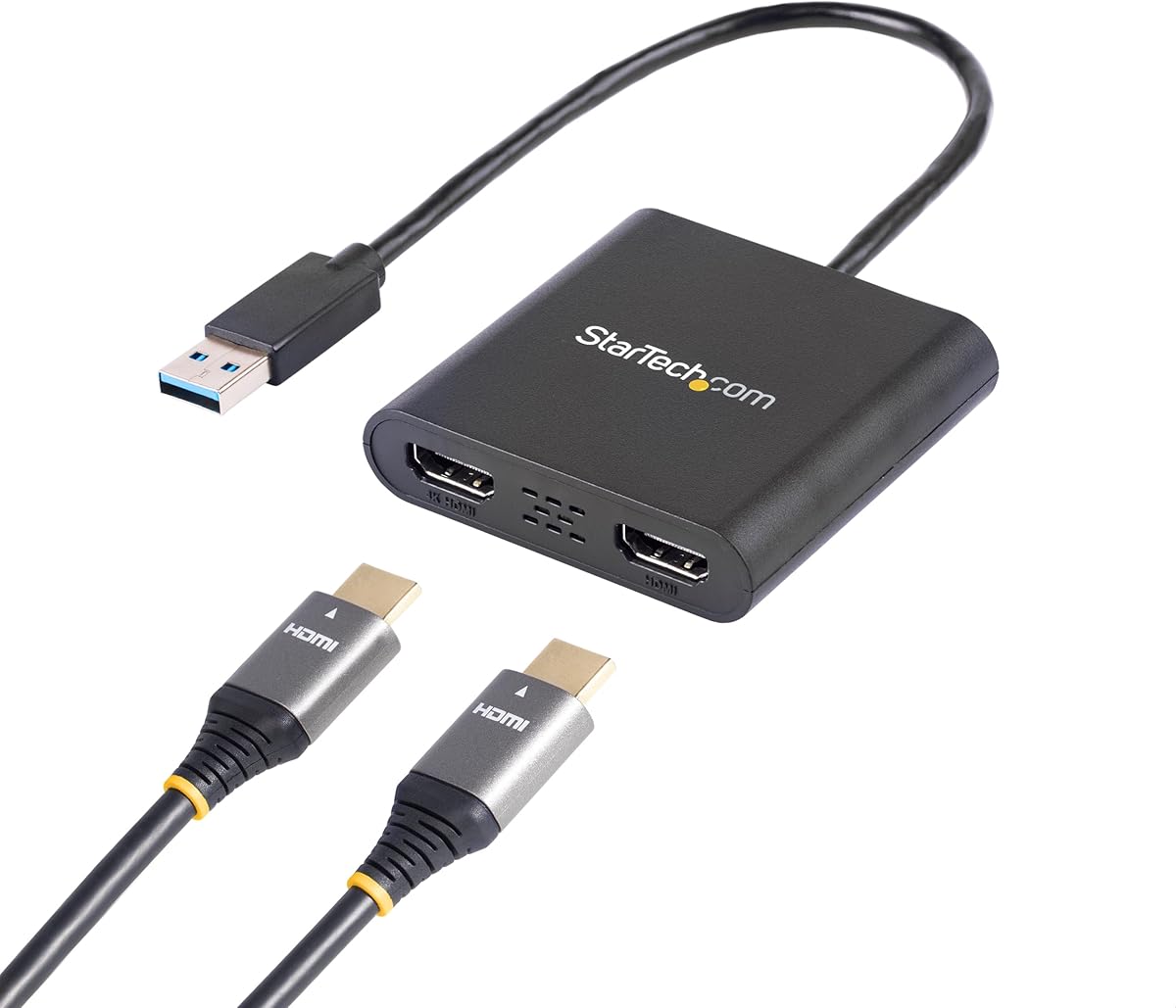
This adapter from StarTech stands out as a reliable choice for Windows users needing dual monitor support via USB-A. With a solid rating of 4.5 stars, it delivers consistent performance for office tasks and general productivity.
We may earn a commission when you buy through this link, at no additional cost to you.
It supports resolutions up to 4K at 30Hz on one port and 1080p at 60Hz on the other, making it suitable for mixed display setups. The USB 3.0 connection ensures sufficient bandwidth for smooth video output without lag.
While the requirement for administrator rights during driver installation might be a hurdle in managed environments, the stability and performance justify the extra step. The 3-year warranty adds peace of mind for long-term use.
This product is ideal for IT professionals or office workers using Windows X86/X64/ARM platforms. If you need a dependable dual HDMI solution that prioritizes stability over cross-platform flexibility, this adapter is a strong contender.
The adapter handles extended desktops smoothly, making it easy to manage multiple applications simultaneously without flickering or signal loss.
Backed by free lifetime technical assistance, this device ensures you have help available if setup issues arise during your use.
We may earn a commission when you buy through this link, at no additional cost to you.
This Selore docking station offers impressive value for its price, supporting dual 4K@60Hz displays for users seeking a multi-screen setup without breaking the bank. It combines video output with essential ports for a complete hub experience.
We may earn a commission when you buy through this link, at no additional cost to you.
The 100W power delivery port ensures your laptop stays charged while you work, and the inclusion of SD/microSD slots adds convenience for creative professionals. It works well with Thunderbolt and full-featured USB-C ports.
Users on macOS should note that this adapter supports mirroring rather than extended displays, which may limit its utility for Mac users. Additionally, you will need to provide your own power adapter for the charging function.
For Windows laptop owners or those needing a versatile USB-C hub with dual video output, this is a top pick. It balances cost and features effectively, making it a smart choice for home and office environments.
Beyond dual HDMI, it offers USB-A and SD card slots, turning a single port into a full docking station for various peripherals.
The advanced intelligent technology ensures stable performance, allowing you to run two 4K screens smoothly without overheating or signal issues.
We may earn a commission when you buy through this link, at no additional cost to you.
This adapter from Selore&S-Global delivers premium performance with dual 4K@60Hz output and a 100W PD charging port, making it ideal for high-performance workflows. It is designed to integrate seamlessly into modern laptop setups.
We may earn a commission when you buy through this link, at no additional cost to you.
The inclusion of a USB-A port for data transfer ensures you can connect peripherals while charging and extending your displays. It supports both SST and MST modes on Windows for true extended desktop functionality.
While it offers top-tier features, macOS users are restricted to mirroring mode, which means you cannot have distinct windows on each external screen. Ensuring your laptop supports DP Alt Mode is also critical for proper function.
If you need a robust solution for gaming, content consumption, or productivity on a Windows system, this adapter is an excellent investment. It offers the speed and stability required for demanding tasks.
The compact design and comprehensive port selection make it easy to carry and use across different work environments without clutter.
With 5Gbps transfer rates and 100W power input, it handles large file moves and keeps your device powered during intensive use.
We may earn a commission when you buy through this link, at no additional cost to you.
The Acer 4-in-1 USB C Hub provides versatile connectivity with dual HDMI ports and a high-speed USB-A port. It supports crisp 4K@60Hz output for both displays, delivering smooth visuals for professional use.
We may earn a commission when you buy through this link, at no additional cost to you.
Its 100W power delivery port charges your device efficiently while you work, and the 5Gbps USB-A port allows for quick file transfers. The design is sleek and compact, fitting well into any workspace.
However, the 20cm cable may be too short for some setups, limiting placement options for your laptop relative to your monitors. Additionally, Mac users will find that mirroring is the only option available for external displays.
For those seeking a balanced hub with video and power options, this adapter is a strong candidate. It works best for users who have short cables and prioritize data transfer and charging capabilities alongside video.
The combination of dual video outputs and fast data transfer makes this hub a complete solution for expanding your laptop's capabilities.
With stable pass-through charging, your laptop remains powered throughout long meetings or work sessions without interruption.
We may earn a commission when you buy through this link, at no additional cost to you.
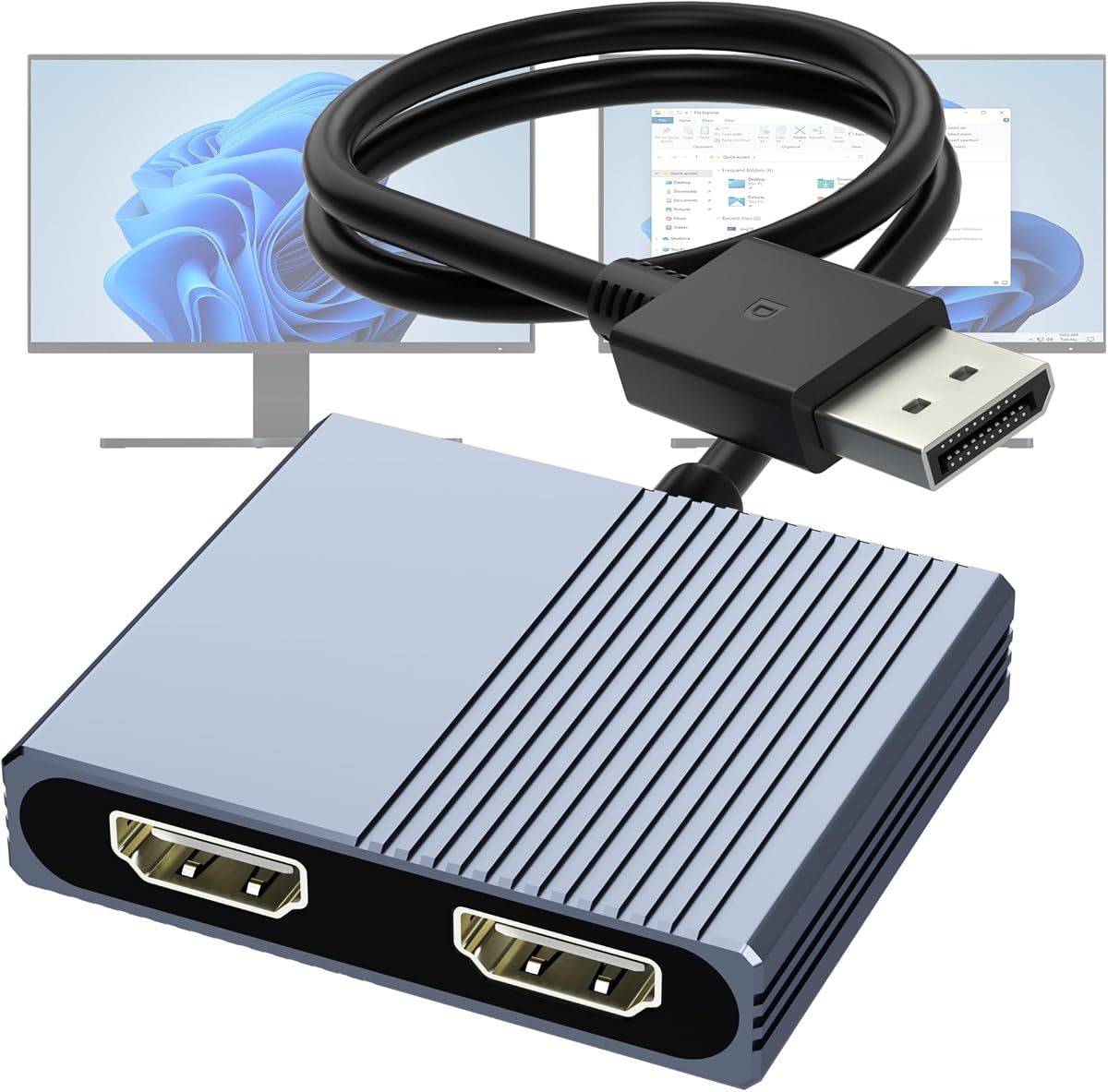
This adapter is designed specifically for users with DisplayPort outputs who want to extend their display to two HDMI monitors. It supports stunning 4K@60Hz resolution, ensuring sharp and vivid visuals for work or entertainment.
We may earn a commission when you buy through this link, at no additional cost to you.
The built-in smart chip enhances performance and stability, while the non-locking connector design protects your graphics card from damage during unplugging. It does not require any drivers, making setup quick and simple.
To achieve dual 4K@60Hz output, your system must support DP1.4, which may limit compatibility with older devices. Additionally, it only supports DP source output, meaning it cannot be used with USB ports or docking stations.
For desktop users with dedicated graphics cards, this adapter provides a reliable way to create a dual-screen setup. It is an excellent choice for those needing high-resolution output without software overhead.
The adapter handles every source with precision, rendering particles with clarity for a seamless visual experience across two screens.
The non-locking connector prevents accidental damage to your ports, ensuring long-term durability and reliable signal transmission.
We may earn a commission when you buy through this link, at no additional cost to you.
This WAVLINK adapter stands out for its compatibility with both Windows and macOS, allowing users to extend their screens across different operating systems. It supports resolutions up to 1920×1080@60Hz, ensuring clear visuals for daily tasks.
We may earn a commission when you buy through this link, at no additional cost to you.
You can use it via USB-C or USB 3.0, offering flexibility depending on your laptop's ports. It is ideal for productivity apps and web browsing, though it is not recommended for gaming or graphic-intensive work due to bandwidth limits.
Driver installation is required, which means it is not a plug-and-play solution. Users should download the latest drivers to ensure optimal performance and avoid potential display issues after setup.
For office workers or students who need cross-platform support for dual monitors, this adapter is a solid choice. It balances ease of use with functional capabilities for general computing needs.
The dual input support for USB-C and USB-A allows you to use this adapter across a wide range of devices without buying multiple units.
With a 24-month warranty and lifetime technical support, you have peace of mind knowing that help is available if you encounter problems.
We may earn a commission when you buy through this link, at no additional cost to you.
The OREI SplitExtend adapter connects a single source to two external displays for an extended viewing experience. It supports up to 4K@30Hz, providing a clear picture for productivity and media consumption.
We may earn a commission when you buy through this link, at no additional cost to you.
It is compatible with Windows and macOS, making it versatile for diverse work environments. The package includes a USB-C to Dual HDMI adapter and a user manual, backed by a 1-Year Manufacturer Support warranty.
For optimal performance, an Intel i5 processor or higher is recommended, and you will need to install the Silicon Motion driver. This can be a limitation for older devices or those with restricted admin access.
This adapter is a good choice for users who need extended displays on a budget. It offers flexibility with connection options and reliable performance for everyday work tasks.
By enabling a 3-screen setup with a laptop and two external monitors, this adapter helps streamline multitasking and workflow efficiency.
With USB-A and USB-C integration, it adapts to various laptop configurations, ensuring you can connect your preferred display setup.
We may earn a commission when you buy through this link, at no additional cost to you.
This HDMI splitter is designed for scenarios where you need to mirror a single signal source across two displays. It supports up to 4K resolution at 30Hz, making it suitable for presentations or watching media on multiple screens.
We may earn a commission when you buy through this link, at no additional cost to you.
The device does not require driver installation, ensuring a straightforward setup process. It is compatible with laptops, desktops, and TVs, allowing for versatile use in different settings.
Since it only supports mirror mode, it is not ideal for extending your desktop. Additionally, the 30Hz refresh rate may be limiting for smooth video playback or gaming on modern displays.
For users who need a simple and affordable solution to duplicate their screen, this adapter is a practical choice. It works well for public displays or meeting rooms where mirroring is the primary goal.
The plug-and-play design ensures you can start using your dual displays immediately without downloading extra software or drivers.
With audio signal synchronization, your video and sound remain perfectly aligned across both screens for an immersive experience.
We may earn a commission when you buy through this link, at no additional cost to you.
This adapter is optimized for graphics cards and desktops with DisplayPort 1.4, delivering dual 4K@60Hz output for an ultra-smooth viewing experience. It features an aluminum alloy housing that enhances durability and heat dissipation.
We may earn a commission when you buy through this link, at no additional cost to you.
You can use it to extend your desktop to two monitors or mirror your screens, depending on your needs. The 24K gold-plated DP connector ensures stable signal transmission even under repeated plugging and unplugging.
While it is robust and reliable, it is not compatible with docking stations or KVM devices, limiting its use to direct PC connections. You must also verify that your GPU supports at least 18Gbps for multi-monitor displays.
This adapter is perfect for creative professionals or gamers who need high performance and reliable connectivity. It provides the stability needed for extended work sessions and demanding applications.
The aluminum alloy housing not only looks sleek but also helps dissipate heat, keeping the adapter cool during long usage periods.
Gold-plated ports and multi-layer shielding ensure that your signal remains strong and clear, reducing the risk of display drops.
We may earn a commission when you buy through this link, at no additional cost to you.
The UANTIN 6-in-1 USB C Hub offers versatile connectivity with dual HDMI ports and three USB-A ports for peripherals. It supports 4K@60Hz video and 100W PD charging to keep your laptop powered during use.
We may earn a commission when you buy through this link, at no additional cost to you.
The 100W power delivery port delivers 90W of charging power efficiently, which is ideal for extended work sessions. The hub also features three USB 2.0 ports to connect keyboards, mice, or flash drives.
Mac users should be aware that this adapter supports mirroring rather than extended displays. Additionally, the USB-A ports are limited to 2.0 speeds, which may slow down data transfers compared to USB 3.0 options.
For users seeking a compact and driver-free hub with multiple connection options, this adapter is a solid choice. It is perfect for organizing your workspace and connecting multiple devices simultaneously.
By connecting multiple devices through one hub, you free up your laptop's limited ports and maintain a neat and organized workspace.
The 100W PD port ensures your laptop stays charged while you work, making it suitable for long sessions away from a wall outlet.
We may earn a commission when you buy through this link, at no additional cost to you.
Choosing the right adapter requires understanding your laptop's ports, operating system, and resolution needs. Use this guide to navigate the key factors before making your purchase.
First, identify whether your device has USB-A, USB-C, or DisplayPort outputs. Most modern laptops use USB-C with DisplayPort Alternate Mode (DP Alt Mode) for video, while older models might rely on USB-A or dedicated DisplayPort connections.
Ensure the adapter you choose matches the specific port on your computer to avoid needing additional dongles or converters.
Check the adapter's compatibility with your operating system. Some adapters support both Windows and macOS, but macOS often restricts external displays to mirror mode unless specific MST protocols are supported.
If you use a Mac and need extended displays, look for adapters that explicitly state MST support for macOS or check third-party driver requirements.
Determine the maximum resolution and refresh rate your monitors support. Many adapters offer 4K at 30Hz or 1080p at 60Hz, but high-performance hubs may provide 4K at 60Hz for smoother visuals.
Ensure your laptop's graphics card and the adapter itself can handle the desired resolution without downgrading performance or introducing lag.
Some adapters include a Power Delivery (PD) port to charge your laptop while connected. Look for hubs with at least 60W to 100W PD if you plan to use the adapter as a single connection point for power and data.
Without PD support, you may need to keep your laptop plugged into its original charger, which can clutter your workspace.
Most USB video adapters require driver installation to function properly. Verify whether the adapter offers plug-and-play functionality or if you need to download drivers from the manufacturer's website.
For corporate environments, check if driver installation permissions are restricted, as this can impact the feasibility of certain adapters for work laptops.
Look for adapters with aluminum housings or robust connectors to ensure longevity. Gold-plated ports and multi-layer shielding can also help prevent signal interference and physical damage.
A durable build reduces the risk of connection failures, especially if you plan to transport the adapter frequently for remote work.
Short cables are common with compact hubs, but they may restrict your setup. Consider the length of the built-in cable to ensure you can place your laptop comfortably relative to your monitors.
If the cable is too short, you may need to use extension cables, which can add cost and potential points of failure.
Check the warranty period and technical support availability. A longer warranty indicates confidence in the product's durability and provides peace of mind for your investment.
Reliable customer support can help you resolve issues quickly if the adapter does not perform as expected.
Start by connecting the adapter to your laptop's USB or DisplayPort port, ensuring a secure fit. If the adapter includes a power cable, plug it into a USB port or wall outlet to provide necessary power to the chipset.
Connect your HDMI monitors to the adapter's output ports, then adjust display settings in your operating system to extend or mirror your desktop. You may need to download drivers first for USB-based adapters.
To maintain the adapter's performance, avoid bending the cable sharply and store it in a dry place when not in use. Periodically check that all ports are clean and free of debris to ensure stable connections.
Yes, but macOS often restricts extended displays to mirroring unless the adapter supports specific protocols. Check the product details for macOS MST support before purchasing.
Most USB video adapters require drivers to function correctly. Check the manufacturer's site for downloads. DisplayPort adapters usually do not require extra software.
Many adapters support up to 4K at 30Hz or 60Hz. The actual resolution depends on your laptop's graphics capabilities and the adapter's specifications.
Most adapters are not recommended for gaming due to potential lag. They are better suited for productivity and media consumption tasks.
Use high-quality HDMI 2.0 or higher cables to support 4K resolutions. Ensure your HDMI cables match the adapter's output requirements for best performance.
It depends on your laptop's ports and OS. Verify compatibility with USB-C DP Alt Mode or DisplayPort inputs before purchasing to ensure it works.
We reviewed ten top adapters ranging from budget-friendly USB-C hubs to premium DisplayPort splitters. Our top picks highlight the StarTech, Selore, and Selore&S-Global options for their stability and features.
Prioritize your specific needs such as OS compatibility, resolution support, and power delivery features. Understanding your laptop's limitations will help you select the right adapter for seamless multi-monitor setups.
Prices and availability can change quickly, so be sure to check current listings before making your final decision. With the right adapter, you can significantly boost your productivity and workspace flexibility.