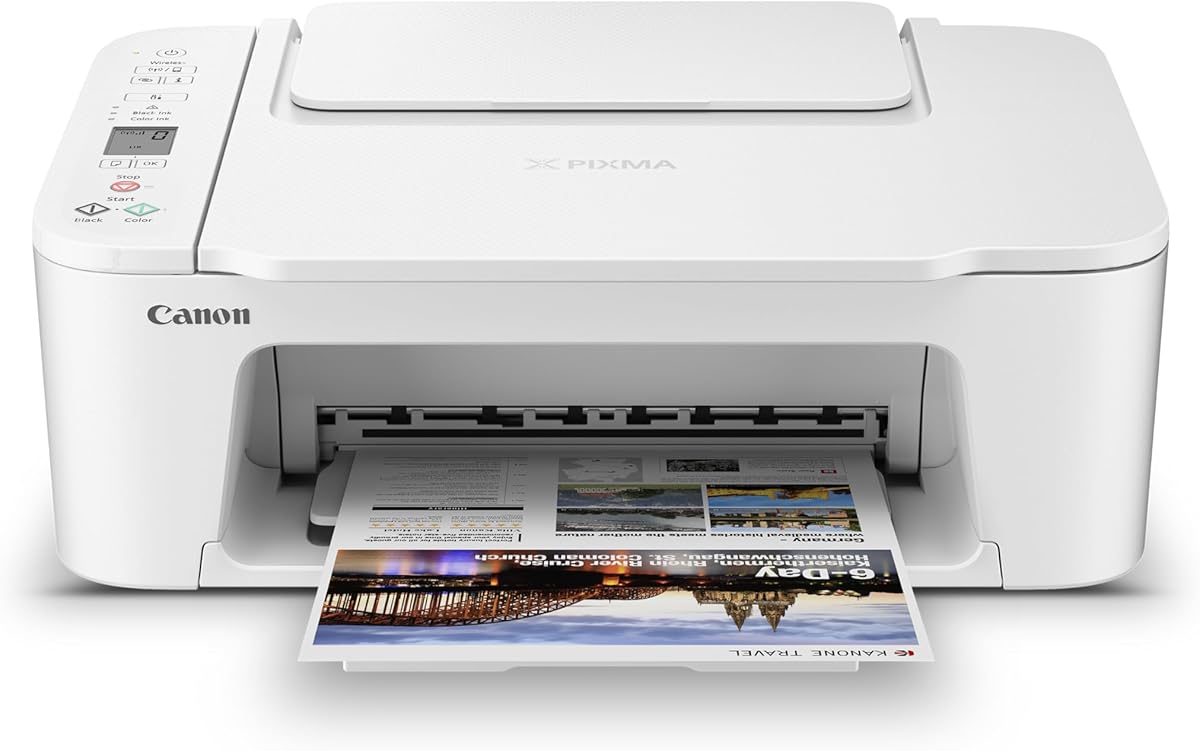
Canon PIXMA TS3720
4.0Editor score
Compact lightweight design
Simple LCD controls
Reliable Wi Fi setup
Choosing the right printer can be daunting when you need simplicity and reliability. Seniors benefit from devices with clear menus and straightforward wireless connections that minimize technical frustration during daily tasks.
Our team evaluated ten leading models based on setup ease, interface clarity, and connectivity stability. We prioritized features like large buttons and intuitive apps that help older users print documents and photos without confusion.
Each pick highlights specific strengths such as compact design or affordable ink costs. Prices and availability change frequently so please verify current details before making your final purchase decision today.
4.0Editor score

3.7Editor score

4.2Editor score
As an Amazon Associate we earn from qualifying purchases.
This side by side comparison highlights key specifications and features across all ten models to help you find the perfect match for your specific home office needs.





The HP DeskJet 2955 offers a straightforward experience for seniors needing basic printing tasks. It combines scanning and copying with a user friendly interface that reduces confusion during daily use.
We may earn a commission when you buy through this link, at no additional cost to you.
Its intuitive icon LCD helps users navigate functions without reading complex text. The included AI features ensure web pages print cleanly without extra whitespace or awkward formatting issues.
While the print speed is modest the dual band Wi-Fi ensures reliable connectivity. Setup is quick and the HP app allows remote management directly from a smartphone device.
This model suits those prioritizing simplicity over high volume. It fits well in small spaces and provides essential features without overwhelming technical complexity for older users.
Large icons and clear labels help users identify functions like copy or scan instantly.
AI technology removes unnecessary elements from web pages so prints look professional and clean.
We may earn a commission when you buy through this link, at no additional cost to you.
The Canon PIXMA TS6520 stands out with its clear OLED display that shows status at a glance. This feature helps seniors monitor ink levels and printer states without digging through menus.
We may earn a commission when you buy through this link, at no additional cost to you.
It delivers sharp text and vibrant photos thanks to its hybrid ink system. Automatic duplex printing saves paper and reduces the need to manually flip sheets during long documents.
Wireless connectivity remains stable across home networks ensuring seamless printing from phones. The compact design fits easily on shelves or desks without taking up excessive space.
Ideal for users wanting better visibility and quality this model balances performance with ease. It is a strong choice for those who value clear feedback from their devices daily.
The monochrome OLED screen provides high contrast status updates that are easy to read from any angle.
Automatic two sided printing cuts paper waste and speeds up workflow for multi page tasks.
We may earn a commission when you buy through this link, at no additional cost to you.
The Canon PIXMA TS4320 offers excellent value for home users seeking reliable all-in-one functionality. Its hybrid ink system produces sharp text and vivid colors suitable for both documents and personal photos.
We may earn a commission when you buy through this link, at no additional cost to you.
Setup is streamlined allowing quick connection to smartphones or computers. Users can print without delay thanks to the stable dual-band Wi-Fi connection that minimizes disconnection issues.
While it lacks an automatic document feeder the compact design fits many spaces. The eco-conscious certifications reflect a commitment to sustainability without sacrificing performance for everyday tasks.
This printer works well for those needing a budget friendly yet capable device. It balances cost with quality making it a practical choice for occasional printing needs at home.
The two cartridge system ensures consistent color output and sharp text for professional looking documents.
Effortless setup means users can start printing within minutes of unboxing the device.
We may earn a commission when you buy through this link, at no additional cost to you.
The Brother Work Smart 1360 connects directly to cloud apps like Dropbox and Google Drive for easy document access. This feature helps users print files without needing a computer at all.
We may earn a commission when you buy through this link, at no additional cost to you.
Its 1.8 inch color display offers clear visual cues for menu navigation. The automatic document feeder simplifies multi-page scanning tasks which is helpful for digitizing records quickly.
While the mobile app has a learning curve the speed and connectivity options are strong. Users benefit from fast black printing speeds and reliable network integration for office tasks.
This model suits seniors who need direct cloud access and decent speed. It balances functionality with a compact design making it suitable for small home office setups.
Users can print from cloud storage services directly through the printer interface without a PC.
Ink usage monitoring helps prevent unexpected shortages and ensures timely replacement of supplies.
We may earn a commission when you buy through this link, at no additional cost to you.
The HP OfficeJet Pro 8125 offers robust security features that protect personal data during printing. This is ideal for seniors handling sensitive documents like bills or financial records at home.
We may earn a commission when you buy through this link, at no additional cost to you.
A large 2.7 inch touchscreen provides an easy to navigate phone like interface. HP AI optimizes layout formatting ensuring web content prints cleanly without wasted paper.
With a high capacity paper tray and fast speeds it handles volume well. However the Instant Ink subscription model may add ongoing costs that some users might find limiting.
This printer works best for those needing security and efficiency. It delivers professional quality and smart features that support a secure home office environment.
Wolf Essential Security helps guard against cyber threats keeping personal information safe during use.
HP AI ensures web pages print with correct margins and without extra white space.
We may earn a commission when you buy through this link, at no additional cost to you.
The HP Envy 6155 delivers vibrant true-to-screen photo prints that seniors can frame or share. Its intuitive touchscreen makes adjusting settings simple without navigating complex menus manually.
We may earn a commission when you buy through this link, at no additional cost to you.
True-to-screen technology ensures colors match digital images closely for high quality results. The HP app facilitates remote scanning and printing making daily tasks manageable from a phone.
While Instant Ink service provides convenience it may feel like an extra cost for some. The printer balances aesthetic appeal with functional design fitting well in living areas.
This model suits users wanting excellent photo quality with smart features. It offers a reliable platform for preserving memories through high standard home printing.
HP technology ensures photos match what is seen on screen for realistic print results.
Made with significant recycled materials this printer reduces environmental impact without sacrificing quality.
We may earn a commission when you buy through this link, at no additional cost to you.
The Canon PIXMA TR4720 includes a built-in fax function useful for seniors communicating with services requiring hard copies. It combines scanning copying and printing in one compact unit.
We may earn a commission when you buy through this link, at no additional cost to you.
Setup is quick and replacement of ink cartridges is straightforward without tools. Alexa integration allows voice commands for ordering ink which reduces manual tracking efforts.
While print speeds are moderate the auto document feeder helps process multiple pages efficiently. This feature reduces the need to place sheets manually on the glass one by one.
This model works well for those needing fax capabilities without a separate device. It balances essential features with smart conveniences for a practical home solution.
Integrated fax allows sending documents without needing a computer or separate machine.
Alexa integration monitors ink levels and can place reorders automatically when supply runs low.
We may earn a commission when you buy through this link, at no additional cost to you.
The Epson EcoTank ET-2800 uses refillable tanks instead of cartridges reducing ongoing ink costs significantly. This system supports up to two years of printing in many cases without frequent refills.
We may earn a commission when you buy through this link, at no additional cost to you.
Heat-free technology ensures consistent print quality while lowering energy consumption. The design reduces waste by eliminating disposable plastic cartridges common with other home models.
While the initial price is higher the long-term savings make it a smart choice for regular users. Setup involves filling tanks which is a simple one-time process after delivery.
This printer suits seniors who print often and want predictable costs. It offers reliability and eco-friendly operation that supports a low maintenance home environment.
Ink bottles provide equivalent capacity of many cartridges reducing the need for frequent changes.
Micro Piezo Heat-Free Tech ensures quality prints while consuming less energy during operation.
We may earn a commission when you buy through this link, at no additional cost to you.
The Canon PIXMA TS3720 is an affordable choice for basic home printing needs without unnecessary complexity. Its streamlined setup allows users to start printing in just a few minutes.
We may earn a commission when you buy through this link, at no additional cost to you.
The 1.5 inch LCD screen provides essential controls for common tasks without clutter. It supports borderless photo printing and works well with Chromebooks for schoolwork or documents.
While it lacks duplex printing it handles standard document and photo tasks well. The dual-band Wi-Fi ensures a stable connection even in homes with many devices.
This model is ideal for those on a tight budget. It offers reliable performance and essential features in a compact package that fits small spaces.
Streamlined initial configuration allows users to begin printing almost immediately after unboxing.
Small footprint makes it easy to place on desks or shelves without taking up much room.
We may earn a commission when you buy through this link, at no additional cost to you.
The Canon PIXMA TR7120 is designed for home offices needing reliable document handling features. Its auto document feeder allows quick scanning of multi-page documents without manual intervention.
We may earn a commission when you buy through this link, at no additional cost to you.
An OLED display offers clear visibility of status and settings for easy monitoring. The hybrid ink system delivers sharp text and vivid colors suitable for various document types.
Wireless connectivity ensures smooth printing from mobile devices for flexible workflow. While the price is higher than basic models the added productivity features justify the investment.
This model suits seniors needing efficient office tasks with minimal fuss. It balances professional capabilities with an intuitive interface for daily home office use.
Auto document feeder supports quick scanning and copying of multi-page files efficiently.
Monochrome OLED screen provides clear status updates and easy adjustment of settings.
We may earn a commission when you buy through this link, at no additional cost to you.
Selecting the right printer involves considering interface clarity setup complexity and ongoing costs. This guide breaks down essential factors to help you make an informed decision.
A clear and simple interface is crucial for seniors who may struggle with small buttons or complex menus. Look for printers with large touchscreens or physical buttons labeled with icons rather than text. This ensures you can find functions like copy or scan without confusion.
Prioritize models with straightforward navigation that show status clearly on the main screen. An intuitive layout reduces frustration during daily printing tasks.
Setup should be quick and require minimal technical steps. Ideal printers offer wireless configuration directly from a smartphone or computer without needing to connect cables. The process should guide users through connecting to Wi-Fi with visual prompts.
Look for features like automatic detection and connection resolution. A setup that takes only minutes saves time and reduces potential points of failure.
Stable wireless connectivity ensures you can print from any device in the house without constant reconnection issues. Dual-band Wi-Fi support helps maintain a strong signal even when many devices are active. This reduces interruptions and frustration.
Support for mobile printing apps allows you to send documents directly from a phone. Ensure the model supports standard protocols like AirPrint or Mopria for broad compatibility.
Ongoing ink expenses can vary widely between models. Some offer subscription services that deliver ink automatically but may involve monthly fees. Others use refillable tanks that reduce long-term costs significantly.
Calculate the cost per page based on cartridge or tank capacity. Choosing a model with lower running costs can save money over time.
Paper trays should be easy to load and remove for refilling. A standard capacity prevents frequent refills which can be inconvenient. Automatic document feeders help scan multi-page documents quickly.
Ensure the printer supports the sizes you need such as standard letter or photo paper. Simple loading mechanisms reduce physical strain during maintenance.
A compact design fits well in home offices or living spaces without obstructing movement. Lightweight models are easier to move if necessary. Consider the footprint relative to available shelf or desk space.
Look for sturdy build quality that resists tipping. A stable base ensures the printer remains secure during operation and transport.
Adequate warranty coverage provides peace of mind for long-term use. Customer support should be accessible and helpful for troubleshooting issues. Check for online resources or chat support availability.
Models from reputable brands often have better parts availability. Ensure the warranty covers standard wear and tear for a reasonable period.
Begin by following the on-screen setup wizard which guides you through connecting to your home Wi-Fi network. Use your smartphone to download the official app for easier management. Keep instructions nearby until you are comfortable with the steps.
Print regular test pages to ensure the printer is ready. Check ink levels via the display screen regularly. Refill cartridges or tanks promptly to avoid running out mid-job and wasting paper.
Store the printer in a cool dry place away from direct sunlight to prevent damage. Clean the glass scanner surface gently with a soft cloth. Periodically update firmware to maintain security and performance.
Yes wireless printers are safe when connected to a secure home network. Choose models with built-in security features to protect personal data. Ensure your Wi-Fi is password protected to prevent unauthorized access to printing tasks.
Ink refill frequency depends on how much you print and the model type. Cartridge printers may need refilling every few weeks while tank models can last months. Monitor ink levels through the app to know when replacements are due.
Most modern printers support mobile printing via apps or standard protocols. You can send documents or photos directly from your device without a computer. Check the product specifications to ensure compatibility with your specific phone model.
Look for models with large touchscreens or physical buttons labeled with icons. Many printers also allow you to use a smartphone app for control. If needed ask a family member to help set up a shortcut on your phone.
Use double-sided printing when possible to save paper and ink. Choose printers with refillable ink tanks if you print frequently. Avoid printing in color unless necessary since color ink is more expensive than black.
Standard letter size documents are easiest for home printing. Photo sizes vary so check if you want borderless prints. Some models support envelopes which can be useful for mailing letters at home.
We reviewed ten models that offer varying levels of simplicity and performance for senior users. The HP DeskJet 2955 and Canon PIXMA TS6520 stood out for their clear interfaces and reliable wireless connectivity.
When choosing prioritize ease of setup and interface clarity over high speed. Consider how often you print to determine whether cartridge or tank models suit your budget better. Accessibility should always be the primary focus.
Prices and availability change frequently so verify current details before making your final decision. Select a printer that aligns with your specific needs for documents and photos to ensure a smooth experience.