
Dell UltraSharp 32 Thunderbolt Hub
4.6Editor score
3000:1 Contrast Ratio
Built-in KVM Switch
Mac Optimized Display
Finding the right display for your workflow requires careful consideration of resolution, connectivity, and color accuracy. Modern professionals need screens that handle 4K visuals while offering seamless cable management through advanced ports like Thunderbolt.
We analyzed ten leading models based on expert reviews, user feedback, and technical specifications. Our comparison focuses on performance metrics, ergonomic features, and how well each monitor integrates with modern computing ecosystems like Mac and PC setups.
Each pick highlights specific strengths for different use cases ranging from creative work to daily productivity. Please note that product availability and pricing fluctuate frequently, so verify current details before making your final purchase decision.
4.6Editor score
4.4Editor score

4.1Editor score
As an Amazon Associate we earn from qualifying purchases.
The following table provides a side-by-side overview of key specifications for all ten models we evaluated. Use this data to quickly identify which monitor meets your specific resolution, port, and ergonomic requirements.


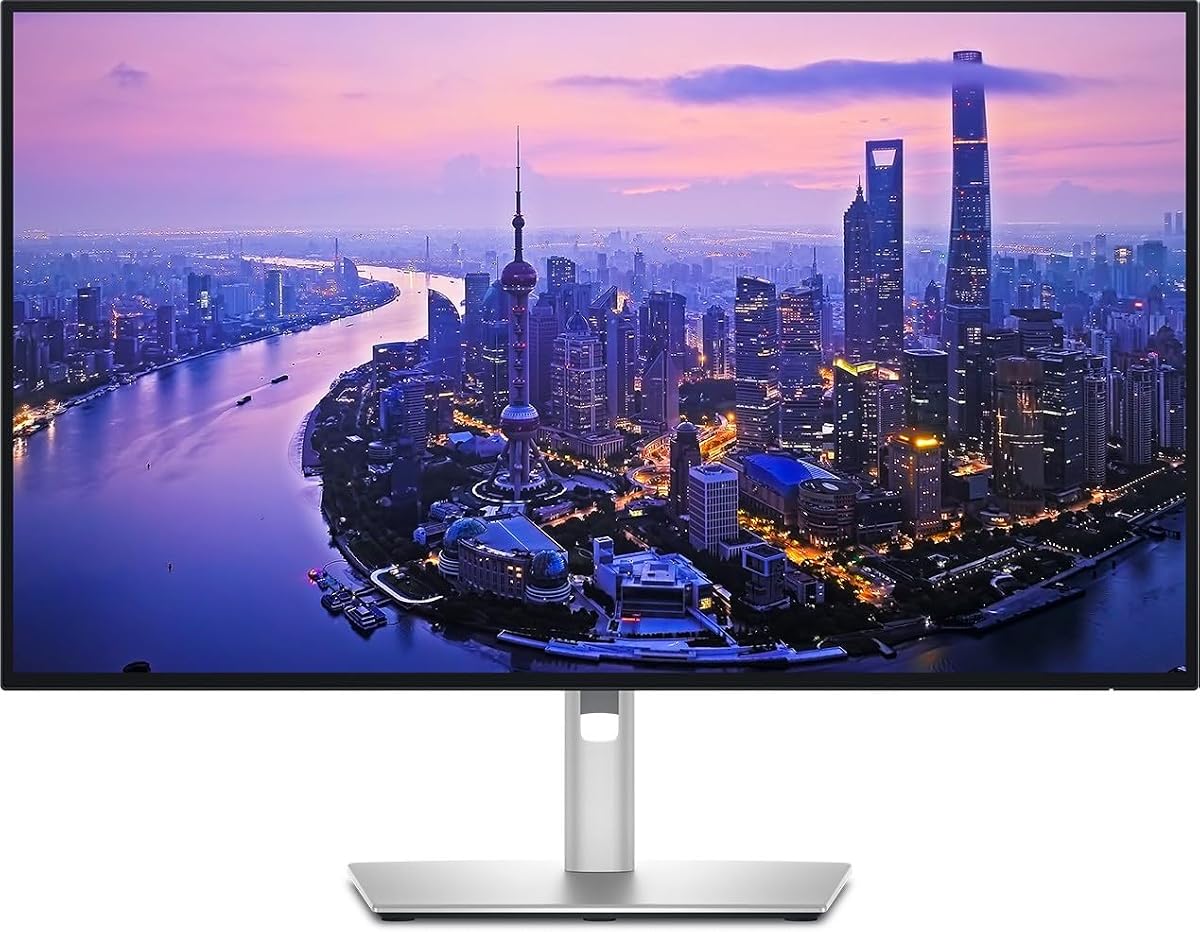
This monitor stands out as a top contender for professionals needing reliable 4K performance. It earns an Editor's Choice badge due to its factory calibration and robust Thunderbolt 4 connectivity. Users appreciate the sharp visuals and the ability to power their laptop through a single cable.
We may earn a commission when you buy through this link, at no additional cost to you.
The IPS Black panel delivers superior contrast compared to standard IPS screens. With 120Hz refresh rates and a 5ms response time, workflows remain smooth even during fast-paced tasks. The 140W power delivery ensures even demanding laptops stay charged while connected.
While the price is higher than standard options, the build quality justifies the investment. The ergonomic stand allows full adjustability for comfort. Some users might find the initial driver setup slightly complex, but the long-term stability is worth the effort.
Ideal for creative professionals and enterprise users who prioritize color fidelity and connectivity. If you need a reliable hub that simplifies your desk, this model delivers exceptional value through its advanced features and durable construction.
The IPS Black technology provides deeper blacks and better contrast ratios than conventional IPS panels. This enhances depth in dark scenes for video editing and graphic design work.
Connect your laptop via one Thunderbolt cable for video, data, and high-wattage charging. This reduces clutter and simplifies daily docking station routines effectively.
We may earn a commission when you buy through this link, at no additional cost to you.
This large format monitor is designed for executives and creators who need maximum screen space. It is highlighted as Best Premium because of its advanced features like a built-in KVM switch. The 32-inch size offers ample room for multitasking and detailed design work.
We may earn a commission when you buy through this link, at no additional cost to you.
Color accuracy is maintained with 99% Display P3 coverage and factory calibration. The enhanced IPS Black panel ensures shadows appear richer on the larger display. Users switching between two machines can do so effortlessly without needing extra keyboards or mice.
The premium build includes a refined light ash finish that looks elegant in professional offices. While it is the most expensive option, it reduces the need for multiple monitors or external switches. The desk space required is substantial so ensure your setup can accommodate it.
Choose this if budget is flexible and you need top-tier productivity tools. The KVM switch and size make it perfect for power users managing multiple systems or complex projects daily.
Use the built-in KVM switch to control two different computers with one keyboard and mouse. This streamlines workflows for users who need to switch between work and personal devices.
The 32-inch screen provides significantly more room for windows and tools than smaller monitors. This allows for side-by-side document comparison or complex timeline editing without clutter.
We may earn a commission when you buy through this link, at no additional cost to you.
This model offers a budget-friendly entry into the Thunderbolt monitor category. It earns the Best Budget badge by providing dual Thunderbolt 3 ports at a competitive price. Users get a large 32-inch screen without paying a premium for extra features.
We may earn a commission when you buy through this link, at no additional cost to you.
The VA panel delivers deep blacks and good contrast which is great for viewing content. With 90W charging via a single cable, it handles power delivery well for most laptops. Daisychaining is supported for expanding your display setup easily.
The refresh rate is limited to 60Hz which may not suit fast gaming but is fine for office work. VA panels have narrower viewing angles than IPS which might affect color shifts at extreme angles. However, the cost savings make these trade-offs acceptable for many.
Ideal for small businesses or home offices needing multiple screens without breaking the bank. If you want large 4K visuals and Thunderbolt connectivity at a lower price point, this is a solid practical choice.
Two Thunderbolt 3 ports allow you to connect multiple devices or chain another monitor. This expands your workspace capability while maintaining a clean cable setup.
The VA panel technology provides deeper black levels than standard IPS monitors. This enhances depth perception in movies and detailed image editing tasks.
We may earn a commission when you buy through this link, at no additional cost to you.
This Dell model focuses on smooth performance and eye comfort. It features a 120Hz refresh rate which is excellent for fluid scrolling and video playback. The ComfortView Plus technology reduces blue light for long work sessions without compromising color accuracy significantly.
We may earn a commission when you buy through this link, at no additional cost to you.
Connectivity includes USB-C with 65W power delivery which handles most ultrabooks well. While it lacks Thunderbolt 4 it still offers good data transfer speeds for peripherals. The 99% sRGB coverage ensures colors look natural for general creative tasks.
The 65W power limit means it might not charge high-performance laptops fully under heavy load. Users needing faster data speeds might prefer Thunderbolt 4 models. However, for everyday productivity and multimedia consumption it offers excellent performance.
Suitable for students and general professionals who need reliable visuals and comfort. If your priority is smooth motion and eye protection rather than maximum power delivery this model is a strong contender.
Reduced blue light emissions help prevent eye strain during long work days. The technology maintains color accuracy while filtering harmful light spectrum portions.
The 120Hz refresh rate makes moving images and scrolling text look smoother than standard 60Hz screens. This reduces visual fatigue during extended usage periods.
We may earn a commission when you buy through this link, at no additional cost to you.
LG brings a unique twist with webOS built-in for streaming entertainment directly. It offers 90W USB-C charging which is sufficient for most professional laptops. The HDR400 support enhances content playback slightly beyond standard SDR limits.
We may earn a commission when you buy through this link, at no additional cost to you.
The port selection includes multiple HDMI and USB ports alongside USB-C for legacy device compatibility. Users who want to watch content without opening their laptop will appreciate the smart features. Color coverage reaches 95% DCI-P3 for vibrant visuals.
The lack of Thunderbolt 4 means data transfer is slower than top models. HDR400 is entry-level so expect limited brightness improvement over standard screens. However, the convenience of integrated apps and good connectivity makes up for this.
Best for users who want an all-in-one display for work and entertainment. If you value having multiple connection types and streaming features without extra hardware this LG monitor fits well.
Stream movies and shows directly through the monitor without needing a PC. This allows for a distraction-free viewing experience during breaks.
Multiple HDMI and USB ports allow connection of older devices and peripherals. This ensures compatibility even if your laptop lacks specific modern connectors.
We may earn a commission when you buy through this link, at no additional cost to you.
This variant focuses on delivering a centralized hub experience in a 27-inch frame. It provides Thunderbolt connectivity that supports daisy chaining and high-speed data. The stand offers full ergonomic adjustments for tilt and height to suit any desk.
We may earn a commission when you buy through this link, at no additional cost to you.
Users benefit from reduced cable clutter by connecting peripherals directly to the monitor. It is ideal for smaller desks where space is a premium. The build quality aligns with Dell's UltraSharp reputation for durability.
With fewer independent reviews the specific performance nuances are less documented than other models. It is priced higher than non-hub options which might affect budget buyers. But the convenience of a unified workspace often justifies the cost.
Recommended for users needing a tidy desk setup with robust connectivity. If you want to centralize your USB devices and maintain a clean 27-inch workspace this hub monitor is a smart choice.
A 27-inch frame provides ample workspace while remaining compact on smaller desks. This balance allows for comfortable viewing without overwhelming the available surface area.
Connect USB drives and webcams directly to the monitor instead of your laptop. This keeps your laptop ports free for charging and other specialized tasks.
We may earn a commission when you buy through this link, at no additional cost to you.
This monitor targets Mac users needing a smaller display with precise color. It is Pantone Validated to ensure fidelity for professional creative work. With 100W power delivery it charges laptops efficiently through a single Thunderbolt 4 cable.
We may earn a commission when you buy through this link, at no additional cost to you.
The 24-inch size is perfect for limited desk spaces or secondary setups. ViewSonic aligns its color standards closely with Apple displays to reduce calibration effort. This makes it easy to use for graphic designers or photographers on the go.
The smaller screen means less real estate for multitasking compared to 27 or 32 inch options. Connectivity is focused on the most critical ports which simplifies use but limits legacy options. For Mac users valuing color this is a strong match.
Ideal for professionals needing accuracy in a compact package. If you work primarily with a laptop and need a reliable color-accurate secondary or primary display this ViewSonic model is worth considering.
Color accuracy is verified by Pantone ensuring consistent results across design files. This certification is crucial for printing and branding tasks.
The monitor is tuned to match Apple display standards for seamless visual integration. This reduces the need for manual color adjustments when switching devices.
We may earn a commission when you buy through this link, at no additional cost to you.
Samsung positions this model as a premium clarity option with HDR10 optimization. The 32-inch IPS panel delivers sharp text and vibrant colors. Eye Saver Mode certified by TÜV reduces strain during long editing or writing sessions.
We may earn a commission when you buy through this link, at no additional cost to you.
It provides a large workspace which reduces the need for multiple monitors. HDR content appears more dynamic thanks to the optimized contrast. The bezel design keeps the look clean and professional in any office setting.
Connectivity relies on HDMI and DisplayPort rather than advanced Thunderbolt hubs. Users needing data transfer speeds beyond standard USB might find this limiting. However, the focus remains on visual quality and comfort.
Best for users prioritizing screen real estate and visual comfort. If you want a large crisp display for reading or detailed work this Samsung monitor delivers excellent clarity.
Certified technology minimizes blue light to protect eyes during extended use. This helps prevent headaches and fatigue in low light environments.
The 32-inch 4K resolution ensures text remains sharp at all sizes. This is essential for reading code or detailed design documents.
We may earn a commission when you buy through this link, at no additional cost to you.
Dell offers this large format screen with an integrated Thunderbolt hub for connectivity. The 31.5-inch size provides significant room for multitasking and complex projects. Slim bezels give it a modern look that fits well in contemporary setups.
We may earn a commission when you buy through this link, at no additional cost to you.
HDR capabilities add depth to supported content making visuals more engaging. The hub allows you to connect devices directly to the screen. This reduces the number of cables reaching your computer directly.
The specific performance details are less available compared to other models in the range. Brightness might not compete with dedicated HDR monitors. Yet for general productivity and design work the screen quality remains high.
Ideal for those needing a large unified workspace. If you want a single screen for heavy multitasking and easy peripheral access this Dell model is a practical choice.
A 32-inch panel allows multiple windows to be open simultaneously comfortably. This reduces the need for constant window switching during complex tasks.
Connect USB devices directly to the monitor hub for simplified setup. This keeps your desktop organized and reduces cable clutter effectively.
We may earn a commission when you buy through this link, at no additional cost to you.
This business monitor supports dual Thunderbolt 3 ports for flexible connection options. The Picture by Picture mode lets you view two sources simultaneously. It also includes Eye Saver Mode to protect eyes during long shifts.
We may earn a commission when you buy through this link, at no additional cost to you.
The VA panel delivers deep blacks that are useful for video and image review. With 90W charging it handles laptop power needs well. The adjustable stand ensures ergonomic comfort across various sitting positions.
Refresh rate is standard at 60Hz which is adequate for office tasks but not gaming. VA panel viewing angles are narrower than IPS so seating position matters. But for general business use it offers strong value.
Best for offices requiring multi-source viewing without extra hardware. If you want to compare documents from two PCs easily this monitor offers practical features for professional workflows.
Connect two devices and view them side by side on one screen. This simplifies workflow when comparing data from different sources.
Fully adjustable stand allows tilt and height changes for comfortable posture. This helps maintain health during extended work days.
We may earn a commission when you buy through this link, at no additional cost to you.
Selecting the right monitor involves balancing screen size, port capabilities, and visual performance. This guide outlines the most critical factors to consider for your specific needs.
For 4K content, a 27-inch to 32-inch screen offers the best balance of sharpness and usability. Larger screens provide more real estate but require more desk space.
Choose a size that fits your physical workspace and viewing distance comfortably.
IPS panels offer wide viewing angles and accurate colors while VA panels provide higher contrast. If you need precise color for design, IPS is usually preferred.
Consider VA for deeper blacks if your work involves video editing or watching media.
Thunderbolt 4 offers the fastest speeds and highest power delivery up to 140W. Thunderbolt 3 is still capable but slightly slower for data transfer.
Ensure the monitor supports the latest TB4 for future-proofing your setup.
High wattage charging ensures your laptop stays powered during intensive tasks. Look for at least 90W to handle most ultrabooks and gaming laptops effectively.
Higher power delivery reduces the need for a separate charging brick.
Most monitors offer 60Hz or 120Hz. If you work with dynamic content, a higher rate ensures smoother motion and scrolling.
A 120Hz refresh rate improves comfort and responsiveness over standard displays.
Look for factory calibration and high color gamut coverage like sRGB or DCI-P3. Professional work requires Delta E values under 2 for true-to-life colors.
Calibration tools or pre-calibrated displays save time and ensure consistency.
Thunderbolt supports daisy chaining to connect multiple monitors with a single cable. This reduces desk clutter significantly for multi-screen setups.
Verify the monitor explicitly supports this feature if you plan to add a second display.
Adjustable stands for height, tilt, swivel, and pivot improve posture during long sessions. VESA mounts allow for alternative arm setups if needed.
Prioritize ergonomics to prevent strain and improve long-term productivity.
Connect your laptop using a high-quality Thunderbolt cable to ensure stable data and power transfer. Avoid bending the cable sharply to protect the internal conductors over time.
Use the monitor's built-in settings to adjust brightness and color temperature based on ambient light. This reduces eye strain during long work hours and maintains optimal viewing comfort.
Clean the screen with a microfiber cloth and a small amount of screen-safe cleaner. Avoid spraying liquid directly onto the panel to prevent moisture from damaging internal electronics.
No, not all 4K monitors support Thunderbolt. Many rely on standard USB-C or HDMI ports for video output. Thunderbolt support requires specific internal hardware to handle high-speed data and power simultaneously. Check the product specs carefully to confirm Thunderbolt 4 compatibility before buying.
Daisy chaining allows you to connect multiple monitors using a single cable from your computer. This reduces desk clutter and simplifies setup management. It is a feature specific to Thunderbolt and USB4 standards rather than standard HDMI or DisplayPort.
Yes, most Thunderbolt monitors work seamlessly with Macs. Thunderbolt is widely adopted by Apple devices for high-speed connectivity. Ensure the monitor supports DisplayPort Alt Mode over USB-C if you are not using a dedicated Thunderbolt port.
120Hz offers smoother scrolling and more responsive motion which reduces visual fatigue. It is beneficial for video editing or general productivity where fluidity matters. 60Hz is sufficient for static document editing but 120Hz is generally more comfortable.
You should look for at least 90W to charge most laptops effectively. High-performance laptops may need 140W to maintain battery levels during heavy load. Lower wattage like 65W works for smaller ultrabooks but may not be enough for gaming machines.
IPS Black technology improves the contrast ratio of traditional IPS panels. It delivers deeper blacks and better shadow detail without sacrificing viewing angles. This makes the display look more like an OLED screen while maintaining IPS color accuracy.
Certified Thunderbolt cables can cost more than standard USB cables due to higher manufacturing standards. It is important to use official or certified cables to avoid connection issues. Check if the monitor comes with a cable before purchasing a separate one.
Monitors with built-in Thunderbolt hubs often eliminate the need for a separate docking station. They provide USB ports and power delivery directly. This centralizes your connections and reduces the number of devices on your desk.
We reviewed ten top models ranging from budget-friendly options to high-end professional displays. The Dell UltraSharp U2725QE and U3226QER stand out for their reliability and features.
Prioritize color accuracy and power delivery if you work on creative projects daily. For general office use, refresh rate and screen real estate might be more critical for your workflow.
Always verify current prices and availability before making a purchase decision. Deals fluctuate often so keeping an eye on promotions can help you save on these premium displays.